
- Share on
-

-
-


“I clicked something I shouldn’t have.”
It’s a call IT providers hear all the time. Someone in accounts opened what looked like an invoice. Someone else followed a Microsoft 365 link and only afterwards noticed the login page looked slightly off.
Cue the sinking feeling that they’ve just infected the whole company…
Here’s the reassuring part: clicking a phishing link doesn’t automatically mean your business has been hacked. What matters is what happened next, and how fast you respond. Because “I clicked a phishing link” can mean anything from opening a dodgy webpage and closing it again to handing an attacker the keys to a Microsoft 365 account. Very different problems.
And phishing isn’t going anywhere. The NCSC says 85% of cyber attacks on UK businesses start with a scam email, and the government’s Cyber Security Breaches Survey 2025/26 found 43% had been hit by a breach or attack in the past year.
So you don’t want to be inventing your response on the spot. Here’s what the first 24 hours should look like.
First, work out what actually happened
Before you reset every password in sight, establish what the employee actually did.
| What happened? | Risk level | Immediate priority |
|---|---|---|
| Clicked the link and closed it | Usually lower | Report it and investigate |
| Entered a password | Higher | Reset credentials and revoke sessions |
| Approved an unexpected MFA request | High | Treat the account as potentially compromised |
| Downloaded or opened a file | Potentially high | Isolate the device and investigate |
A click on its own may have simply taken the user to a fraudulent website. Annoying, but often survivable.
Entering a password is different. Those credentials may now be sitting in somebody else’s hands. Approving an MFA request could hand an attacker access despite MFA being switched on. And opening an attachment raises the possibility of malware on the device.
To know which of these you’re dealing with, you need the employee to tell you exactly what happened.
Which is the first reason blame is so unhelpful during a security incident. If somebody spends ten minutes deciding whether they can get away without mentioning the password they typed in, those ten minutes can matter more than the original click.
The first 10 minutes
The aim is simple: stop things getting worse, while preserving enough for whoever investigates.
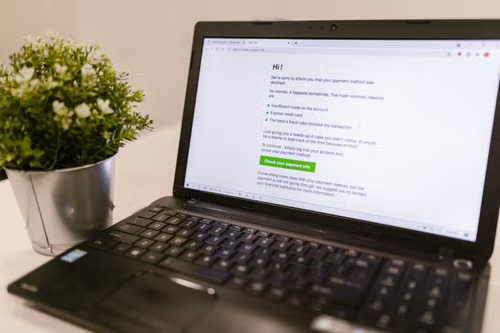
Stop interacting with the phishing message
Close the webpage. Stop clicking.
Don’t reply to the sender, don’t follow another link, and don’t start poking around to see whether the page is “really” fake.
And don’t delete the original email. Your IT provider may want to inspect the sender, the links, the headers or the attachment.
The instinct is to start clicking around, trying to “undo” it. That usually just makes the investigation harder.
Picture courtesy of Pexels
Tell IT exactly what happened
Contact whoever runs your IT or cyber security, and give them the facts. Not “I clicked a phishing email.” The actual facts.
Did you enter your email address? Your password? Did a Microsoft Authenticator notification pop up, and did you approve it? Was anything downloaded? Did you open it?
Those answers decide the next move.
If you entered a password, reset it
Change the affected password from a device you know is clean.
If you’ve reused that password anywhere else, those accounts need attention too. Password reuse is how one compromised login quietly becomes five.
But a reset isn’t the end of the story.
Microsoft’s own guidance for responding to a compromised Microsoft 365 account recommends revoking active sessions. That kicks out existing access immediately, rather than assuming a password change has shown the attacker the door.
If you approved an MFA request, say so immediately
MFA is one of the best things you can do for account security. But it can’t save you if an attacker talks you into approving their login for them.
So an unexpected MFA prompt that got approved deserves to be taken seriously.
IT should check the account, its active sessions and its registered authentication methods. Microsoft’s guidance also recommends reviewing MFA devices and removing any unfamiliar ones that may have been added.
If you downloaded or opened something, stop using the device
If a suspicious file was opened or run, IT may want to isolate the machine from the network while they look at it.
Don’t wipe it. Don’t factory-reset it. Don’t start deleting files to tidy up.
Your provider needs to work out what actually happened before deciding how to treat the machine.
The first hour: did the attack actually work?
Once the immediate risk is contained, the question changes. Did somebody merely try to compromise the business, or did they succeed?
The government’s figures show how lopsided the picture is. In the same Breaches Survey, 38% of businesses reported phishing attacks, against 12% for online impersonation and 7% for viruses or other malware.
For a Microsoft 365 account, your IT team may look at:
- recent sign-in activity
- unfamiliar locations, devices or IP addresses
- active user sessions
- newly registered or changed MFA methods
- suspicious applications granted access to the account
- new inbox or forwarding rules
- sent, deleted and archived emails
- unusual access to SharePoint, OneDrive or other Microsoft 365 services
Microsoft also recommends checking which applications have been granted access, and revoking anything that shouldn’t be there.
Watch the mailbox rules
This is one of the quieter signs of a compromise, which is exactly why it matters.
An attacker often doesn’t want you to notice anything at all.
So instead of causing chaos, they set up rules that quietly forward certain emails elsewhere, or hide incoming replies. Someone targeting invoice payments would far rather sit and watch a conversation with your supplier than crash anybody’s laptop.
That compromised mailbox then becomes the engine of a very convincing payment-redirection scam.
Which is why checking Outlook rules, forwarding settings, sent items and deleted items can tell you far more than simply asking whether the user can still log in.

Check anything financially sensitive
If the phishing message touched invoices, banking, payroll or payment details, widen the net.
Have any payment details been changed or authorised? Have suppliers had unusual messages? Did the account have access to financial systems?
And if money has actually gone out the door, call the bank straight away, alongside your IT provider.
The first day: establish the blast radius
By now, you’ve hopefully contained the immediate problem. The job now is to understand what the attacker could have reached while they were in.
Worth asking:
- What company information could the account access?
- Was personal or confidential information exposed?
- Were messages sent to customers, colleagues or suppliers?
- Were any other employees targeted?
- Did the account have access to shared drives or other systems?
- Are further password resets necessary?
- Do other devices need inspecting?
- Should customers or suppliers be warned?
- What suspicious activity should be watched for over the following days?
This is also the point where the incident can stop being purely an IT problem and become a data-protection one.
A compromised email account doesn’t automatically mean you’ve got a reportable personal-data breach. You first have to establish whether personal data was actually exposed, and how much risk that poses to the people involved.
The ICO says a notifiable personal-data breach must be reported without undue delay, and where feasible within 72 hours of you becoming aware of it. You don’t need every last detail to make that first report, either. The rest can follow.
For an SME, the practical lesson is blunt: don’t leave that assessment until Thursday because everyone was busy with the technical side on Monday.
What not to do after clicking a phishing link
A few responses turn a bad situation into a harder one to investigate.
Don’t hide it
Security teams can deal with mistakes they know about. The dangerous one is the mistake somebody sits on because they’re embarrassed.
Don’t assume a password reset fixes everything
If somebody’s already logged into the account, changing the password may not touch every session or undo every change the attacker made. Check it properly.
Don’t forward the suspicious email around
“Does this look dodgy to you?”
Sent to twelve colleagues, malicious link still live underneath.
Use your phishing-reporting process, or send it straight to whoever’s investigating. Nobody else needs a copy.
Don’t wipe the laptop before IT sees it
If malware’s suspected, keeping the device intact long enough to investigate matters. A fresh Windows install removes plenty of evidence. Which isn’t much help when you’re still trying to work out what was compromised…
Don’t make an example of anyone
People make mistakes. Phishing exists precisely because criminals have got very good at writing messages people act on.
Humiliate someone over one slip and the lesson the rest of the office takes away isn’t “be more careful”. It’s “don’t tell anyone next time”.

Picture courtesy of Pexels
The best time to plan for a phishing click is before one happens
The NCSC recommends every business have a cyber-attack plan setting out who does what, and when. For a small firm, that doesn’t need to be a 40-page binder.
Start with four questions:
- Who gets called?
- Where’s their number kept if your normal systems are down?
- Who has the authority and access to disable a compromised account?
- Who decides whether customers, suppliers or regulators need telling?
You’d much rather answer those on a quiet Wednesday morning than in the ten seconds after somebody says, “I think I just gave them my password.”
Most small firms know they should have a plan like this. Finding the time to build one is the hard part. That’s the bit we can take off your hands: Operum will review your security and incident-response setup, find the gaps, and make sure your team knows exactly what to do when something goes wrong.
Get in touch today to arrange a security review.
Sign up below to join the Operum newsletter