- Share on
-

-
-


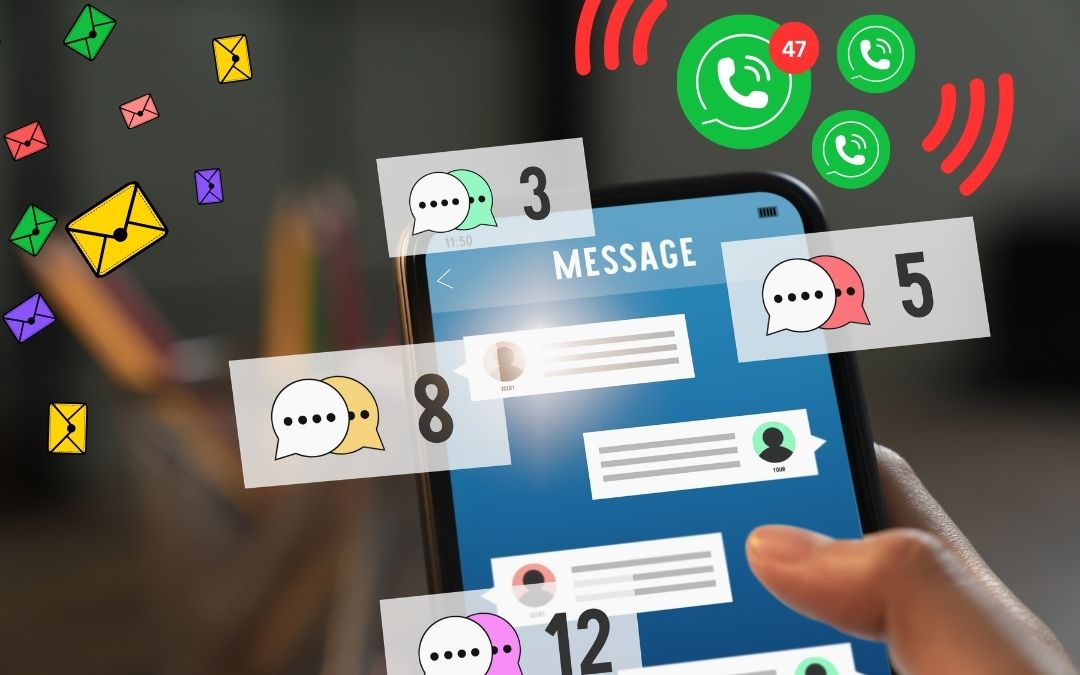
If you feel like your attention span has taken a hit, you’re not imagining it. The tools you rely on every day are built to keep you checking, clicking, and reacting. That dopamine overload isn’t a character flaw; it’s design.
The problem is what happens when that design collides with modern work.
You cannot do deep thinking while your phone is nudging you, your inbox is refreshing, and your browser is serving infinite novelty. Over time, many people end up stuck on the dopamine hamster wheel — constantly stimulated, rarely satisfied, and quietly exhausted (I’m picturing a lot of nodding heads here…)
And the cost shows up in stress, mental fatigue, poorer decisions, and work that takes longer than it should.
This article is not about going off-grid or “having more discipline.” It’s about configuring your devices and your working environment so focus is the default. You’ll set up practical controls on your phone and desktop, and if you manage a team, we’ll give you some simple norms that protect concentrated work without slowing the business down.
Let’s get to it.
What dopamine overload looks like at work — and why it happens
This rarely shows up as “I’m distracted.” It shows up as:
- you keep bouncing between tasks, but nothing feels properly finished
- you reach for your phone or inbox without deciding to
- deep work feels oddly uncomfortable, even when you’ve got time
- you feel busy all day, then wonder what you actually achieved
What’s going on is less about dopamine as a buzzword, and more about how your attention gets trained.
Modern apps run on novelty and variable rewards: sometimes there’s something interesting, sometimes there isn’t, and your brain learns that checking might pay off. That “maybe the next one” loop is powerful, and it’s why scrolling and inbox-checking become reflexes.
Then you add constant switching. When you move from Task A to Task B, part of your attention tends to stay behind, which reduces performance on the new task (often called attention residue). Task-switching also comes with measurable cognitive costs, even when you think you’re “just quickly” swapping.
The outcome is predictable: more mental effort for the same output, more self-interruptions, and a workday that feels like it’s happening to you rather than being driven by you.
Phone controls that actually work: 5 top tips
Your phone is the most efficient distraction device you own. It’s always with you, it knows what gets your attention, and it’s very good at interrupting you at the worst possible moment. The goal here isn’t to get rid of it. It’s to stop it pulling you out of focus on autopilot.
Start with these changes. They’re boring. They also work.
1. Turn off non-essential notifications
Most notifications aren’t urgent. They’re reminders that something exists. That’s it.
- keep calls and messages from real people
- remove alerts from social media, news, and “engagement” apps
- be ruthless with anything that isn’t time-sensitive
If something matters, you’ll check it. If it’s genuinely urgent, it will find another way to reach you.
2. Use focus modes properly
Focus modes only work if you treat them as defaults, not special occasions.
- set one for work hours that blocks everything except essentials
- allow specific people, not whole apps
- schedule it, so you’re not relying on memory or motivation
This removes dozens of micro-decisions from your day.
Focus mode for Android:
- Open Settings: Tap the Settings app on your phone.
- Find Digital Wellbeing: Scroll down and select Digital Wellbeing & Parental Controls.
- Select Focus Mode: Scroll to the “Ways to disconnect” section and tap Focus Mode.
- Choose Apps: Select the apps you find distracting (on Pixel/stock Android) or the apps you want to allow (on Samsung).
- Set Schedule/Start: Tap Turn on now to start immediately, or Set a schedule to have it activate automatically at certain times.
Focus mode for iPhone:
- Activate: Open Control Center (swipe down from top-right), tap the Focus button, and select a Focus or a time duration.
- Set Up: Go to Settings > Focus. Tap the + to add a new one or select an existing Focus to customize.
- Customize People & Apps: Tap “People” or “Apps” to select who and what can break through.
- Link Screens: Tap the Lock Screen/Home Screen icons to choose which pages to show.
- Add Schedule/Automation: Tap “Add Schedule” to set rules for automatic activation.
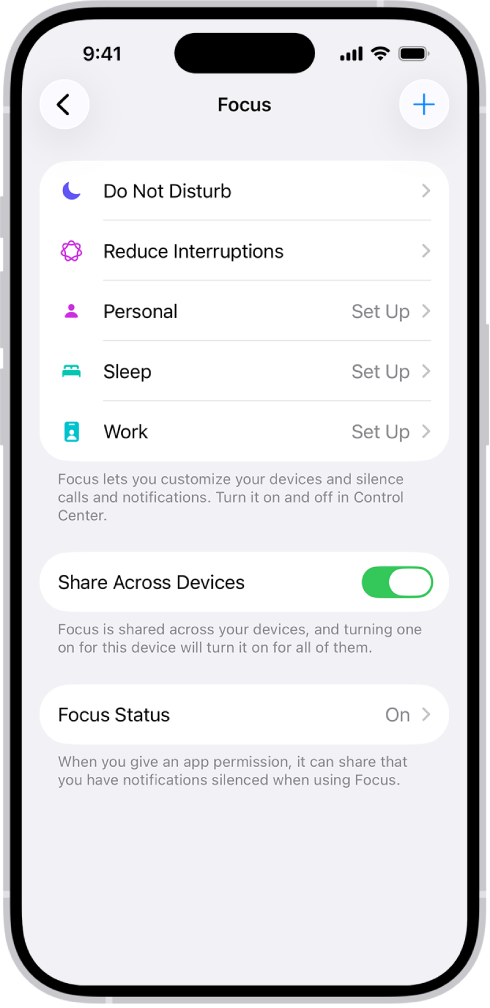
Pic courtesy of Apple Support
Try grayscale mode
This sounds trivial, but it’s surprisingly effective. Colour is a big part of what makes apps sticky. Removing it makes scrolling feel flat and uninteresting much faster.
Many people don’t stop using their phone in grayscale. They just stop lingering.
Add friction with app limits and blockers
App limits aren’t about discipline. They’re about interruption.
When you hit a limit or a block, it forces a pause. That pause is often enough to break the reflex and ask, “Why am I opening this right now?”
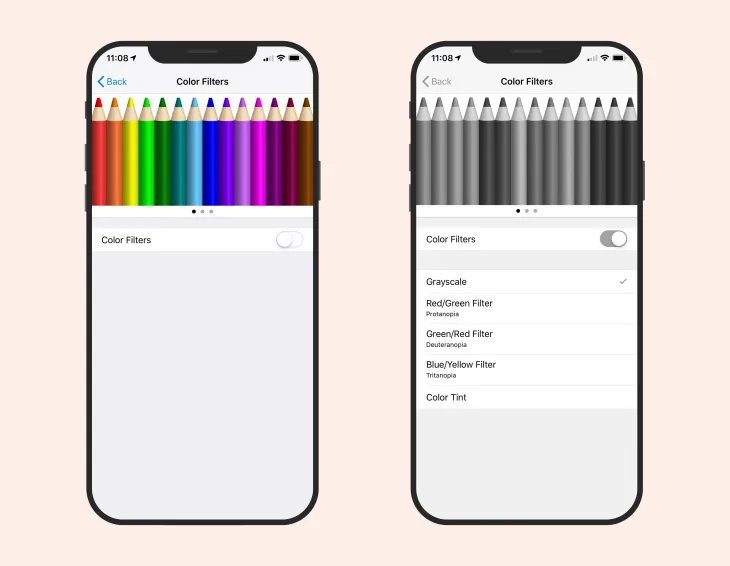
Image credit: Rose Carson
Change where your phone lives
This is the simplest one, and often the most powerful.
- keep it off your desk when you’re working
- put it face down and out of reach
- charge it somewhere you can’t grab it mindlessly
If your phone isn’t in your peripheral vision, it can’t constantly compete for your attention.
These changes don’t remove distraction entirely. They just stop your phone acting like a slot machine in your pocket while you’re trying to think.
Desktop controls: remove triggers and build recovery into your day
Phones get the blame, but desktops do a quieter kind of damage. The issue isn’t that you can’t focus. It’s that your machine keeps offering you dozens of tiny exits, all day long.
A good desktop setup does two things:
- it reduces the number of “invites” to switch tasks
- it forces small recovery moments, so fatigue doesn’t quietly turn into procrastination
Here’s a simple way to approach it:
| Distraction trigger | What is causes | Practical fix |
| Inbox and chat pop-ups | constant task switching and shallow work | turn off banners; batch checks 2–4 times/day; use “deliver quietly” where possible |
| Browser feeds and “recommended” panels | accidental scrolling loops | block feeds on desktop; remove news/social shortcuts; set a clean start page |
| Tab sprawl | mental clutter and half-finished work | use session-based tabs (one task, one window); close tabs at the end of a work block |
| Always-on notifications | “just a sec” interruptions that break flow | set quiet hours; allow only critical alerts; move chat apps out of sight when you’re in focus mode |
| No breaks | fatigue that feels like restlessness | use a break timer (short breaks every 45–90 mins); add “eyes away” prompts to reduce strain |
A few practical notes that matter more than they sound:
- If you can see a notification badge, your brain treats it like unfinished business. Removing badges and banners reduces that low-level “pull.”
- If you don’t schedule breaks, you’ll take them anyway — they’ll just show up as checking, scrolling, and tab-hopping instead of actual recovery.
- Batching isn’t about ignoring people. It’s about protecting enough uninterrupted time to do the work people are messaging you about in the first place.
Next up: how businesses can promote short, focused work sessions (without turning the workplace into a productivity cult).
Reducing procrastination triggers (and the tools that help)
Most procrastination isn’t laziness. It’s usually one of three things:
- the task is unclear (you don’t know what “done” looks like)
- the task feels too big (your brain avoids starting)
- you’re depleted (so you reach for something easier and more stimulating)
The fix is to remove friction and reduce choice.
Make the next action painfully specific
If your to-do says “sort website” or “prep proposal,” your brain will keep dodging it.
Instead, define a next step you can start in under two minutes:
- “Open the proposal doc and write the first three bullet points”
- “List the pages that need updates”
- “Draft the email subject lines”
You’re not planning the whole project. You’re creating a runway.
Use time limits to stop tasks feeling endless
A lot of avoidance comes from not knowing how long something will take.
Try timeboxing:
- 25 minutes focused work, 5 minutes break (aka “Pomodoro Technique”)
- or 60–90 minutes focused work, 10 minutes break (often better for deep work)
The timer isn’t there to pressure you. It’s there to make starting feel safe.
Remove the easy exits
If distraction is one click away, you’ll take it when energy dips. That’s not weakness. It’s predictable behaviour.
Make distraction slightly inconvenient:
- keep social/news sites blocked during work blocks
- log out of the worst offenders on desktop
- put your phone out of reach (you’ve already set this up)
If you manage a team
The fastest way to reduce procrastination across a team is to reduce ambiguity. Clear priorities, clear definitions of “done,” and fewer last-minute “quick requests” will improve focus more than any app ever will.
Tools that support focus (keep it simple)
| Outcome | Tool type | Examples |
| block distraction during work blocks | website/app blockers | Freedom, Cold Turkey, Focus (macOS), Screen Time (Apple), Digital Wellbeing (Android) |
| reduce notification noise | focus modes / quiet hours | iOS Focus, Android Focus Mode, Windows Focus sessions, macOS Focus |
| build breaks into the day | break timers | Windows Focus sessions, BreakTimer (desktop), basic Pomodoro timers |
| keep tasks clear and small | task capture | a single to-do list (Apple Reminders, Todoist, Microsoft To Do) |
A final rule for tools: if you add three new apps to “fix distraction,” you’ve probably just created a new form of distraction. Pick one blocker and one simple task list, then rely on defaults and routines.
Start here this week
You don’t need a total reset. You just need fewer moments where your devices make the next poor choice the easiest choice.
Start with a simple three-step setup this week:
- Cut the noise: turn off every non-essential notification on your phone and desktop.
- Add friction: block your main distraction sites during work hours and keep your phone out of reach when you’re working.
- Protect focus blocks: work in one or two timed sessions a day (even 60 minutes), and take a real break afterwards.
When you’re working, you shouldn’t be wrestling Meta or X for your attention. Setting better defaults stops the fight entirely.
Want this to stick across the team? Operum Tech can help you audit your current setup and implement distraction-reducing defaults, with secure device and access settings that actually fit how small businesses work. So focus isn’t left to chance.
Contact us today to talk about your needs.
Sign up below to join the Operum newsletter