- Share on
-

-
-


In most small businesses, meeting notes don’t go missing in an obvious way. They usually exist somewhere, they’re just scattered across notebooks, email threads, chat messages, documents, and maybe a stray Post-It or two… A week later, lo and behold, nobody can find the right version quickly, and the team falls back on memory.
The result is predictable: decisions get revisited, action items drift, and people spend time chasing context instead of moving work forward.
A “good enough” system to automate meeting notes isn’t complicated. It focuses on three things:
- what was decided
- who owns the next steps (and by when)
- where the notes live, so anyone can find them later
In this guide, you’ll set up a simple Microsoft 365 workflow that keeps notes consistent in OneNote and shares them reliably after each meeting, without adding another toolchain to maintain.
The “good enough” system: one template, one home, one sharing step
The aim here is not to build a knowledge management platform. It is to make meeting notes consistent enough that they are easy to write, easy to find, and easy to reuse.
A “good enough” system has three parts.
1) One template (so every note captures the essentials)
Every meeting note should follow the same simple structure, so you aren’t reinventing the page each time. It also means anyone can take notes, and the output still looks familiar.
Your template only needs to cover:
- purpose of the meeting (one line)
- decisions made
- action items (owner + due date)
- key context or links (only if needed)
If you try to capture everything, people stop using the template. Keep it light and repeatable.
2) One home (so notes do not scatter)
Choose one place where meeting notes live, and stick to it. For this guide, that “home” is a dedicated OneNote notebook.
This matters more than it sounds. Most note-taking problems aren’t caused by bad writing; they’re caused by bad retrieval. If you can’t find the note later, it may as well not exist.
The rule is simple: every meeting note goes into the same notebook, in a predictable section.
3) One sharing step (so nobody has to hunt)
Notes only work when other people can access them. The easiest way to make that happen is to share the link consistently, immediately after the meeting.
This is the only part we will automate. Not because automation is the goal, but because it removes the most common failure point: notes that exist, but never get circulated.
In the next section, you will set up the foundation in OneNote: notebook structure, naming, and a reusable template you can copy in seconds.
Set up the foundation in OneNote (10–15 minutes)
This setup is intentionally simple. You are creating a single, predictable place for meeting notes to live, plus a template that makes note-taking fast.
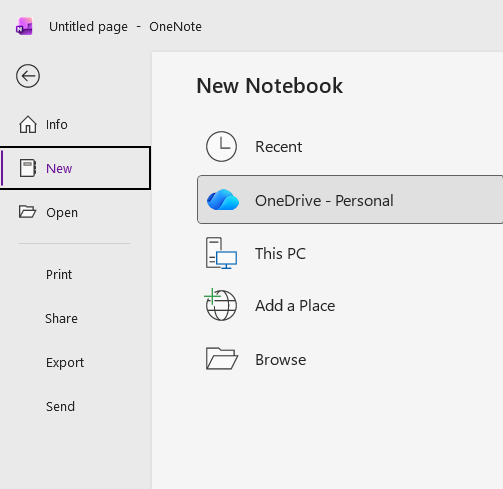
Step 1: Create a dedicated notebook for meeting notes
In OneNote, create a new notebook called something like:
Meeting notes (company name)
Keep this separate from personal notes. The goal is to make it shareable, searchable, and easy for the team to adopt.
Pic courtesy of Microsoft Support
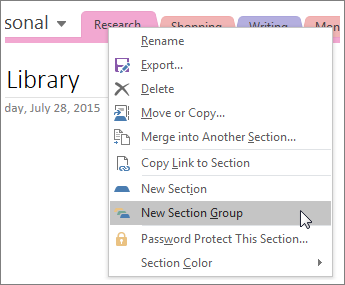
Step 2: Create sections that match how your business actually works
Don’t overthink it, just pick one organising method that will still make sense in six months. Common options for small businesses are:
- by team (sales, ops, delivery, leadership)
- by client (for account or project meetings)
- by recurring meeting type (weekly ops, pipeline review, delivery stand-up)
If you are unsure, start with “by team.” It usually scales better than “by meeting type” because meeting types tend to multiply.
Pic courtesy of Microsoft Support
Step 3: Use a naming convention that makes searching painless
The simplest convention is:
DD-MM-YYYY– Meeting name
Examples:
22-01-2026 – Weekly ops
22-01-2026 – Client catch-up (Acme Ltd)
This gives you consistent sorting and makes notes easy to scan in OneNote and search in Microsoft 365.
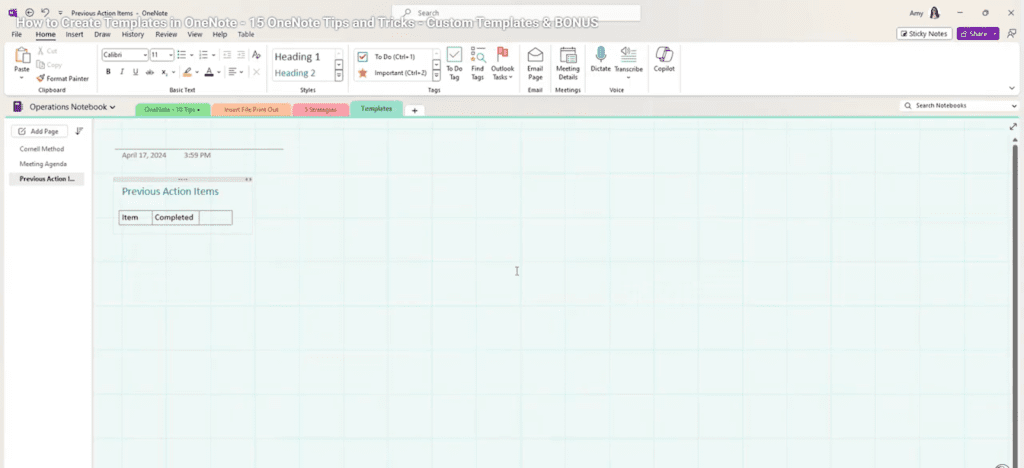
Step 4: Create a reusable meeting note template page
Create a new page called:
Meeting note template
Use this structure:
- Meeting title
- Date and attendees
- Purpose
- Decisions
- Action items (owner + due date)
- Notes / context / links
Keep the template short. If it feels like admin, it won’t be used.
Once it is created, you will copy this page for each meeting note. That gives you consistency without forcing a complicated system.
It’s all fairly straight-forward but here’s a short YouTube video that will help if you have any issues.
Step-by-step: the workflow during a real meeting
This workflow is intentionally simple. It’s designed to work even when the meeting runs long or someone else ends up taking notes.
Before the meeting
Open the OneNote notebook, go to the correct section, and copy the meeting note template. Rename the page using your standard naming convention so it is easy to recognise later.
If someone else is taking notes, share the page link at the start of the meeting so everyone is working from the same document.
During the meeting
Use the template to capture outcomes rather than a full transcript.
Focus on:
- decisions that were made
- action items, with an owner and a rough due date
- enough context that someone who was not present can follow what happened
Avoid trying to document every discussion point. The note should support follow-up, not replay the meeting.
After the meeting
At the end of the meeting, the note should already be in the right place. There is no filing step and no second copy to maintain.
The only remaining task is sharing the link with attendees. In the next section, we remove even that step using one small Power Automate flow.
Add one small automation with Power Automate
This is the only automation in the workflow, and it is deliberately limited in scope. The goal is not to build a complex system, but to remove a single small recurring failure point: notes that exist but never get shared.
By automating the sharing step, you make the system more reliable without making it harder to manage.
What this automation does (and does not do)
This flow does one thing:
- after a meeting, it sends a link to the OneNote page to the relevant people
It does not:
- move or rename notes
- create multiple copies
- try to interpret content
- replace human judgement
That restraint is what keeps it stable.
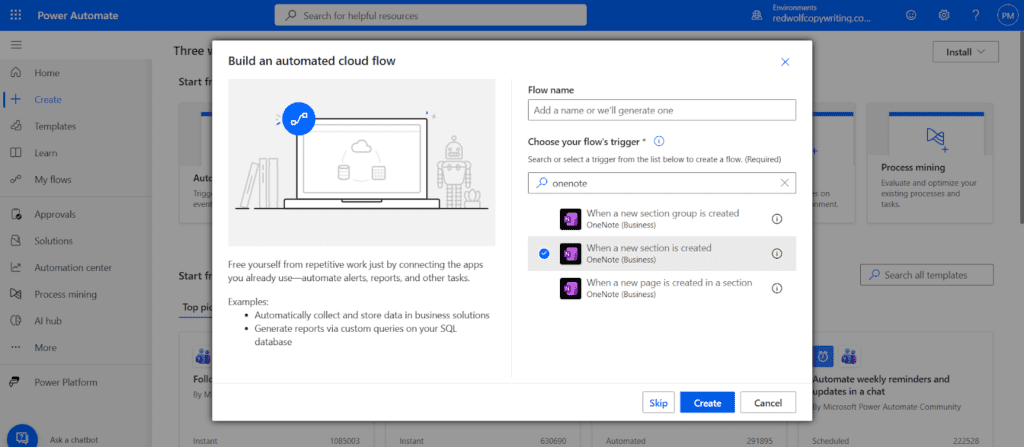
Choose a simple trigger
In Power Automate, start with a straightforward trigger. Two sensible options are:
- when a calendar event ends
- when a OneNote page is created in a specific notebook or section
For most small teams, triggering on a new page in the meeting notes notebook is the most reliable option. It avoids dependency on meeting titles, calendars, or attendance rules that often change.
Send the note link automatically
Once the trigger fires, the flow should do one thing: send the page link.
Common delivery options are:
- a Teams message to the meeting channel
- an email to the attendees
Teams works well for internal meetings. Email is often better if external participants are involved.
The message itself can be simple. For example:
“Meeting notes from today’s session: [link]”
Why this is the right level of automation
This flow removes friction without introducing fragility. If it fails, nothing breaks. The note still exists, and it can still be shared manually.
That is an important design principle for small businesses. Automation should reduce effort, not create silent dependencies.
What not to automate (to avoid risk and mess)
A simple rule of thumb is: Automate the repeatable parts, not the sensitive ones. Meeting notes are where confidential information often lands by accident, so “auto-share everything” is an easy way to create exposure.
Sensitive people topics
Keep anything related to people management manual, including:
- performance conversations
- disciplinary issues
- pay, promotions, or grievances
- health-related discussions
These notes should be tightly controlled, and often kept outside a general meeting notes notebook.
Client notes with confidentiality or retention needs
If notes include commercially sensitive details, contract terms, or regulated information, do not rely on default sharing. Be deliberate about:
- access permissions
- how links are shared
- how long notes are retained
Notes that need judgement before sharing
If notes contain informal views or half-formed thinking, share manually (or send to yourself first) so you can add context or remove what should not circulate.
Using AI note-taking tools (with care)
AI note-taking tools are becoming more common and can be useful in the right context. For example, Microsoft Teams’ Facilitator can generate meeting summaries, highlight key points, and suggest action items in real time. That said, the output should always be reviewed by a person before it is shared or treated as a record, as AI tools can miss nuance or distort details.
Turning action items into tasks
It’s possible, but it is also where simple note-taking workflows become brittle. Treat task automation as a separate improvement once the notes system is being used consistently.
Conclusion: keep it simple, keep it reliable
A simple notes system only works if people actually use it. If it adds friction, it will be ignored, and you are back to scattered decisions and missed follow-ups.
Start small: set up the notebook and template, then run it for the next three meetings without changing the process. You’ll quickly see what needs adjusting, and what doesn’t.
If you want help standardising this across teams, tightening permissions, or connecting notes to the systems you already rely on, Operum Tech can help you automate meeting notes in a way that stays maintainable.
Contact us today to get started.
Sign up below to join the Operum newsletter